Comparisons
Best Image Format for Blog Featured Images
Featured images are one of the most visible media assets on a content site, so the format needs to balance speed, clarity, and shareability.

Choose formats from every place the image appears
For many modern blogs, WebP is the strongest featured-image default because it keeps article templates lighter without sacrificing quality unnecessarily.
One featured image, several jobs
Check a featured image in three places: the article hero, a small card, and the social preview. The same photograph can work in all three, but the same crop often cannot. A face that looks balanced in a wide hero may disappear when a card trims the sides.
Keep a clean master and export the variants the template really uses. Name them by purpose rather than by a vague sequence such as final-final-2. The format matters, but consistent crops, dimensions, and preview metadata are what make the publishing workflow feel human instead of improvised.
What a featured image needs from its format
A featured image usually needs to look good at the top of the article, inside card grids, and inside social previews or Open Graph shares. That means the format should support a clean visual result while keeping the file efficient enough for article templates that may already carry several images.
WebP is often a strong default for modern blog delivery, while JPG remains useful when broader compatibility or simpler editorial handling matters. PNG is usually reserved for text-heavy or graphic-style featured images.
- WebP for many modern article and card-image workflows.
- JPG for straightforward photo-led featured images with compatibility needs.
- PNG for text-heavy or transparency-driven editorial graphics.
Map the featured-image slots before exporting
A featured image can appear as a wide article hero, a small related-post card, an archive thumbnail, an email image, and a social preview. Inspect the actual template slots before choosing dimensions; one universal crop often hides the subject somewhere.
Keep a clean master and generate each required variant from it. The chart below is illustrative: its values explain the comparison workflow rather than document a reproducible benchmark for every featured image.
- Article hero: match the largest rendered content width and create a smaller responsive source when useful.
- Card or archive thumbnail: export a dedicated crop instead of shrinking the hero in CSS.
- Open Graph preview: use the current dimensions and formats supported by the crawlers that matter to the site.
- Email or RSS image: favor broad client compatibility and a conservative file weight.
- High-density display: add extra intrinsic pixels only when the rendered slot and visual detail justify them.
- Every variant: preserve the focal point and set width and height in the page markup.
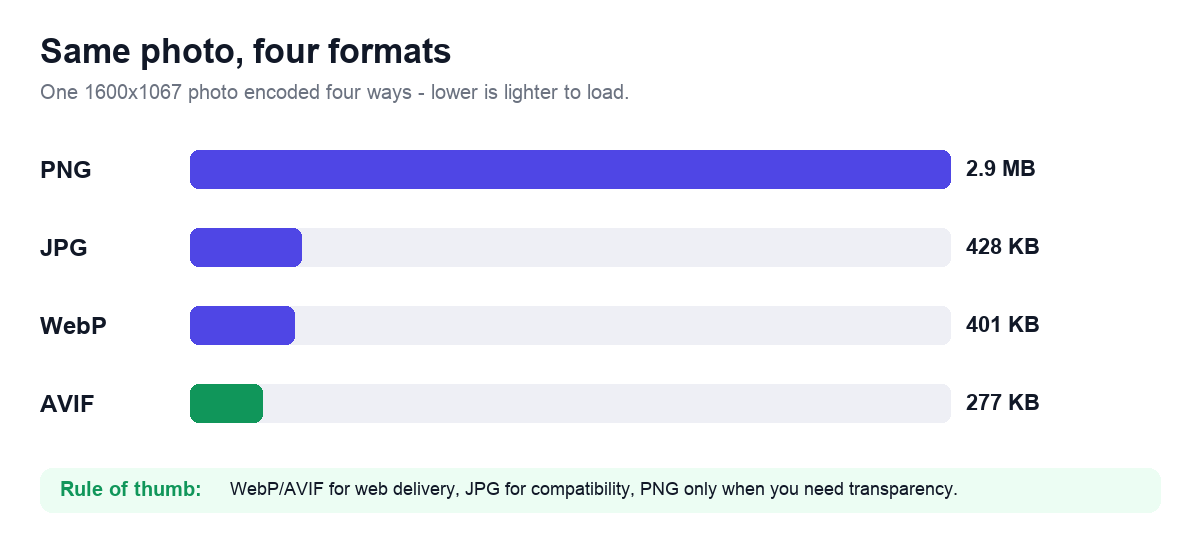
Hero, card, archive, and share preview are separate jobs
A travel photo at the top of an article often works well in WebP or JPG.
A tutorial cover with large text overlays may need PNG or lossless WebP.
A blog card grid with dozens of featured images benefits directly from lighter modern formats.
Why the on-page hero and link preview may differ
The best on-page format is not automatically the safest social-preview format. Crawler support, CMS metadata, redirects, response headers, and cached fetches can differ from normal browser behavior. Point og:image and the relevant social tags at a stable public asset in a format supported by the target services.
After publishing, use the platform preview or debugger to see what was actually fetched. Keep important content away from the outer edges because different cards can crop the same source differently, and remember that a corrected image may not appear until the platform refreshes its cache.
Why the hero and share card may need separate files
Featured images often contribute a large share of article-page weight, so format choice affects speed and how quickly the content becomes usable.
Publishing teams should define a featured-image preset that includes ratio, dimensions, and preferred format so editors follow one clear standard.
Featured-image habits that create avoidable weight
- Uploading design-source PNGs as live featured images without checking size.
- Ignoring how the image behaves inside social previews and card grids.
- Using one giant size for every article template.
- Forgetting to compress after choosing the format.
Frequently Asked Questions
Is WebP suitable for blog featured images?
Yes for the image served on the page when your stack supports it. Also confirm that social crawlers and your CMS receive a compatible preview image.
Can the same crop be used for the hero and thumbnail?
Sometimes, but check both slots. Important subjects near an edge may be lost when the template applies a different aspect ratio.
How large should a featured image be?
Match the largest rendered slot and provide responsive variants when useful. Avoid uploading the camera original just because the CMS can accept it.
Related Tools


Sources and related reading
For the Open Graph metadata fields, consult Open Graph protocol reference. For a hands-on companion to Best Image Format for Blog Featured Images, continue with Open Graph card preparation.