


Featured guides

JPG vs PNG
Learn when a photo should stay JPG and when a screenshot, logo, or transparent asset should be PNG instead.
Read the comparisonWebP vs JPG vs PNG
Choose the best web image format for blogs, product pages, landing pages, and social assets.
See the web publishing guideAVIF vs WebP vs JPG
Compare the newest delivery options against classic JPG so you can balance file size against workflow safety.
Read the modern format guide
How to Compress Images
Reduce file size without over-damaging quality by using the right dimensions, format, and compression settings together.
Read the compression guideVisual tutorial: how to use the image tools
Most tools on ImageConverterTool follow the same reliable workflow: upload the source image, choose the setting that matches the destination, preview the result, and download a separate optimized copy. The tutorial below shows that process with images so new visitors can understand the site before opening a specific converter, compressor, resizer, or form-upload tool.

Upload the source image
Choose the clearest file you have. For strict form uploads, keep the original safe and create a separate working copy.

Choose the right setting
Select a format, size, quality level, crop ratio, or exact-KB target based on the upload page or publishing surface.
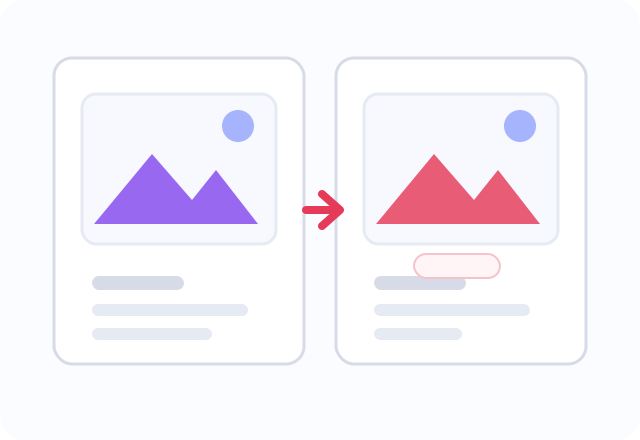
Preview before download
Check file size, dimensions, transparency, text clarity, and subject framing before you use the output.

Download the final copy
Use the new file for the website, form, social post, email, or document while keeping the original for future edits.
Common image-tool errors and quick fixes
When an image upload fails, the problem is usually not the tool button itself. It is usually one missing requirement: the format is wrong, the file is still too large, the dimensions are not accepted, transparency was flattened, or the source photo is too large for an exact-KB target. The table below gives visitors a faster path to the right next step.
| Error or problem | Why it happens | Best fix |
|---|---|---|
| Cannot compress to 20KB, 50KB, or 100KB | The image dimensions are usually too large for the strict target. | Resize first, then run exact-KB compression. |
| Portal still rejects the image | The file may meet the KB limit but fail format, dimension, filename, or background rules. | Check format, dimensions, final size, filename, and visual quality before uploading again. |
| Image looks blurry after compression | Quality was pushed too low or the source image was too small. | Raise quality, resize oversized images first, and avoid upscaling tiny sources. |
| Transparent background disappears | JPG does not support transparency. | Use PNG or WebP when transparency must stay, or choose a background before JPG export. |
| iPhone photo will not open | HEIC/HEIF support depends on the browser and device. | Use HEIC to JPG first, then resize or compress the JPG copy. |
| Photo uploads sideways | The destination may ignore camera orientation metadata. | Rotate the actual pixels before cropping, resizing, or compressing. |
Latest from the blog
Best Image Format for Websites in 2026
Use a practical decision model for photos, transparent graphics, ecommerce media, and performance-sensitive pages.
Read the website format guidePNG vs WebP for SEO
See where sharper graphics matter more than compression savings and where WebP becomes the better delivery choice.
Compare PNG and WebPHow to Reduce Image Size Without Losing Quality
Follow a cleaner workflow for resizing, compressing, and choosing the right format before uploads go live.
Read the optimization workflow
How to Convert iPhone HEIC to JPG
Fix HEIC compatibility issues without losing sight of file size, sharing, and photo-management tradeoffs.
Solve HEIC compatibilityFAQ
Is this really free?
Yes. The core image tools are available without creating an account.
Do you keep copies of my files?
For supported browser-based tools, the selected file is processed locally and is not stored by the site for the transformation. Keep your original because the site cannot recover it or the output later.
What if I do not know which format to use?
Start in the Guides section. It explains the common tradeoffs between JPG, PNG, WebP, AVIF, HEIC, PDF workflows, background cleanup, compression, and metadata handling.