Platforms
Best Image Size for Instagram Posts and Reels
Instagram image sizing works best when you prepare for the exact frame instead of hoping the app will make every crop look intentional.

Map each Instagram surface to its frame
Square, portrait, and full-height story or Reel frames all behave differently. Preparing the right size for the exact surface is more reliable than uploading one giant source for everything.
JPG for ordinary photo posts and PNG for certain text-heavy or graphic-led creative is a practical starting point, but check the platform's current composer or upload guidance before preparing a large batch.
Design for the phone, not the export window
View an Instagram asset at phone size and cover the areas where interface controls or captions may sit. That catches the classic mistake: a subject or headline placed beautifully at the very edge, then hidden by the app. Safe margins are less exciting than a dramatic crop, but they are much easier to read.
Instagram changes its interface and recompresses media, so dimensions in any guide are starting frames rather than a guarantee of pixel-for-pixel delivery. Match the current surface, export once from the master, and inspect the upload preview. Repeatedly saving an already-compressed social copy is how a crisp image slowly turns into soup.
Choose the Instagram surface and crop separately
Instagram surfaces use different frames, and recommendations can change with the app. A 1080 px-wide export remains a common starting point for many feed and vertical assets, but use the current composer and first-party guidance before preparing a campaign batch.
Create feed, Story, Reel-cover, carousel, and profile versions from the original source. Re-cropping a finished social export compounds compression and often places the subject poorly in the next frame.
- Feed portrait: use the current portrait ratio shown by the composer and protect the profile-grid crop.
- Feed square: center the subject and check that edge text survives the feed margins.
- Feed landscape: use a deliberate wide crop rather than adding empty bands.
- Story or Reel cover: start with a vertical frame and leave room for interface controls.
- Carousel: keep one consistent ratio across all cards.
- Profile photo: use a square source with the subject inside a circular safe area.
| Placement | Starting canvas | Crop check |
|---|---|---|
| Square feed post | 1080 × 1080 px (1:1) | Keep the subject useful in the profile-grid view |
| Portrait feed post | 1080 × 1350 px (4:5) | Inspect the feed and profile-grid previews separately |
| Story or Reel artwork | 1080 × 1920 px (9:16) | Keep essential text and faces away from interface controls |
Reference: Meta guidance for Instagram Reels creative
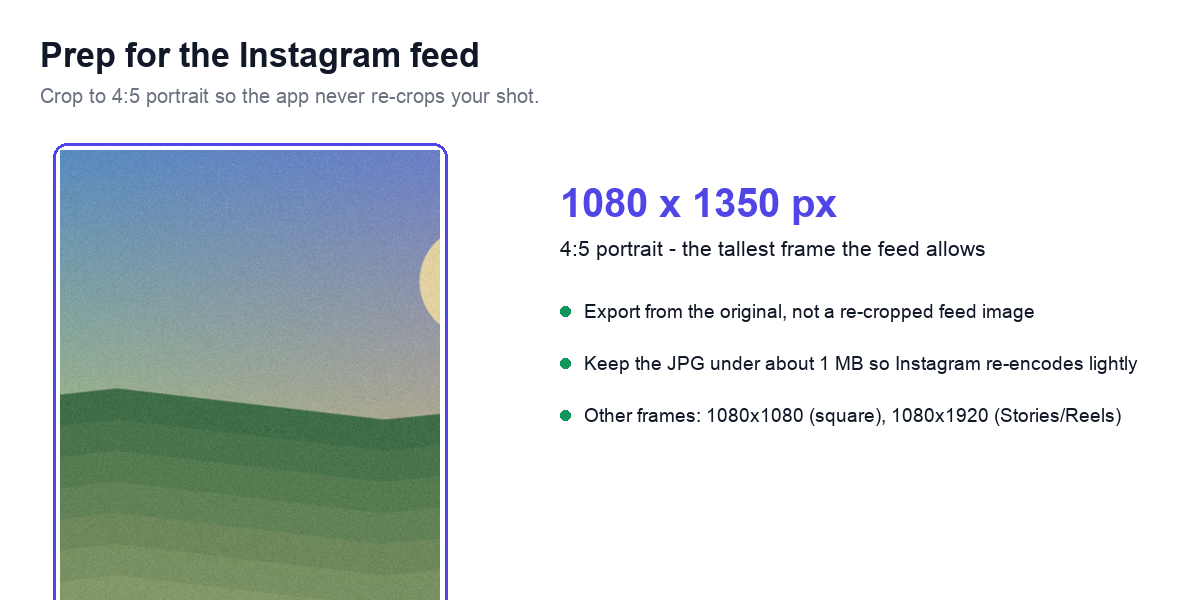
Make separate feed, Story, and Reel exports
Choose the specific Instagram placement first, crop to the correct ratio, resize to the matching dimensions, and keep the file light enough that app-side recompression has less work to do.
Use a visual safe zone for interface controls
Stories and Reels place account details, captions, and action controls over the media. Keep faces, logos, subtitles, and product details inside a generous central safe area, then preview on a phone because control positions can vary by app version and device.
Feed and profile-grid crops may also differ. Keep the main subject useful in the center of a portrait post, and frame the first carousel card conservatively because it carries the initial impression.
- Keep essential content away from the top account area.
- Leave extra space near bottom captions and controls.
- Avoid placing text beneath the right-side action controls.
- Check how a portrait post appears in the profile grid.
- Preview the first carousel card before exporting the full set.
Portraits, carousels, and covers need different safe areas
A portrait photo for feed use needs a different crop than a story or Reel cover image.
A quote card with bold typography may need a sharper export than a lifestyle photo.
A carousel cover image should be framed more conservatively because the feed preview crops aggressively.
What each Instagram frame changes
Instagram assets are often reused on websites, so a clean image-sizing workflow benefits both the platform and your owned content later.
Teams should build preset-based social workflows so editors and creators do not guess at aspect ratios on every upload.
One-export-for-every-placement errors
- Using one crop for square posts, portrait posts, and story frames.
- Uploading oversized images and relying on app recompression alone.
- Placing text too close to the edges where interface elements can crowd it.
- Ignoring how the post looks on mobile after platform processing.
Frequently Asked Questions
What aspect ratio uses more space in the Instagram feed?
A portrait post commonly occupies more vertical feed space than a square, but use the current composer preview to confirm the crop.
Why is text covered in a Reel or Story?
Interface elements occupy parts of the frame. Keep essential text and faces away from the outer edges and preview on a phone.
Should Instagram photos be JPG or PNG?
JPG is generally practical for photos. PNG may suit text-heavy graphics, but the platform can still process the upload.
Related Tools


Sources and related reading
For Meta's description of Instagram feed, carousel, Story, and Reel creation surfaces, consult Meta: new ways to create content on Instagram. For a hands-on companion to Best Image Size for Instagram Posts and Reels, continue with Social media image-size workflow.