Workflows
How to Compress a Passport Photo for Online Forms
Passport-photo uploads fail most often because the file is larger than the form allows or because the dimensions and format do not match the instructions.

Start with the issuing portal's current rules
A passport-style upload can satisfy the byte cap and still fail the authority’s crop, background, expression, format, or dimension rule. The current official notice—not a generic preset—defines what the applicant must submit.
Read the portal twice, edit once
The most reliable passport-photo workflow begins outside the editor. Copy the portal's current width, height, format, background, and file-size rules into a short checklist, because "passport size" is not one universal digital specification. Two official forms can ask for different crops and limits.
Crop and resize before compressing. This protects facial detail because the encoder is no longer wasting bytes on a huge phone image. Aim just below the stated cap, reopen the file, and verify the dimensions after download. Portals are rarely impressed by creative interpretation.
Portal requirements are specific, not universal
Passport, visa, exam, and identity portals publish different rules and can update them. Do not reuse a dimensions table from another application. Read the exact form for width, height, aspect ratio, background, head position, file format, and both minimum and maximum file size.
Copy those rules into a checklist, then resize and compress a separate image. The upload screen and current official guidance outrank any example in this article.
- Required pixel width and height or aspect ratio.
- Minimum and maximum file size.
- Accepted file types and color mode.
- Background color and lighting rules.
- Head size, position, expression, and permitted edits.
- Filename or document-specific requirements.
Crop and compress a copy in separate passes
Work from a copy after reading the authority’s instructions. Correct framing and required dimensions before compression, then inspect the saved photo and confirm format and bytes; the tool cannot guarantee the portal’s acceptance decision.
- Read the form instructions for dimensions, format, and file-size limits.
- Resize the photo to the required dimensions before compressing further.
- Use a compatible format such as JPG unless the form says otherwise.
- Preview the final file to make sure the face remains clear and the background still looks acceptable.
Hit the limit without destroying the face
File size is controlled mainly by pixel count, scene detail, format, and encoder settings. Resize to the portal dimensions first, then lower quality gradually. This avoids spending bytes on a large phone frame the form will never use.
There is no universal quality percentage that becomes unacceptable. Inspect eyes, hair, skin, and the background after every meaningful reduction. Aim just below the cap rather than at the smallest possible file, and use the exact-size tool only after the crop and dimensions are correct.
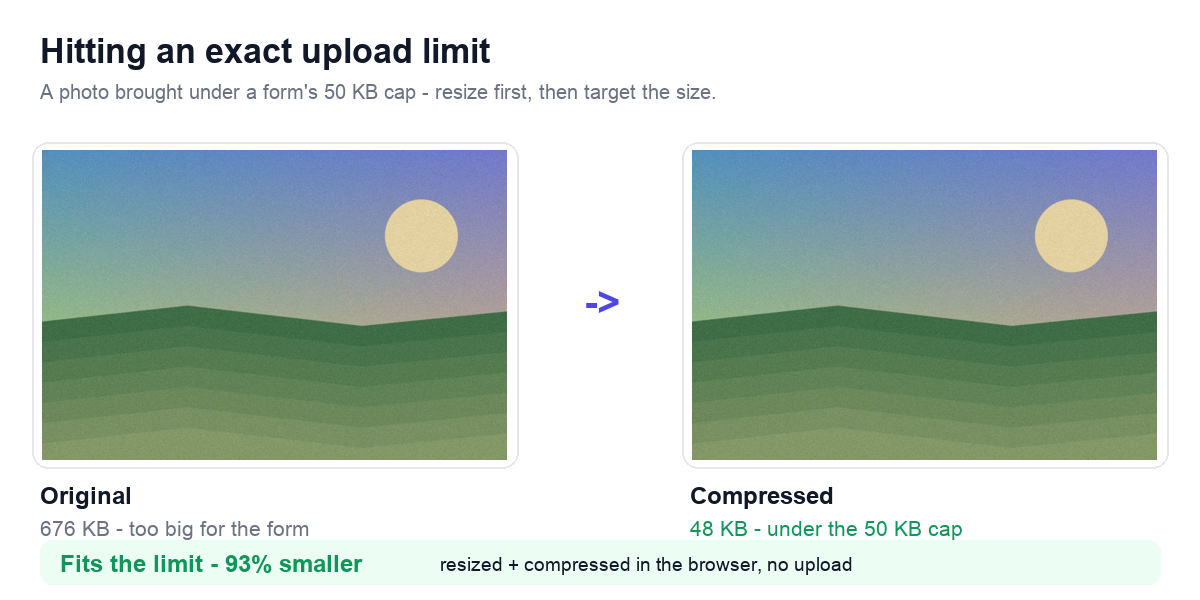
Approach the byte cap without erasing facial detail
Passport-photo forms usually respond best to correct dimensions first and moderate JPG compression second.
Printed, scanned, and online-renewal photos are different cases
An exam application portal with a photo size cap.
A government site that wants exact dimensions and a JPG upload.
A visa or ID workflow where the background and face framing must remain clear.
The issuing authority remains the acceptance source
The same discipline used for forms also improves general website image preparation: match the destination, then optimize deliberately.
Teams building upload forms should document exact image requirements clearly so users do not guess at settings.
Why a compliant file size can still be rejected
- Compressing before checking the required dimensions.
- Using the wrong file format for the form.
- Pushing compression so far that facial details become unreliable.
- Ignoring the form instructions and hoping the portal will accept a close-enough upload.
Frequently Asked Questions
Is there one universal passport-photo pixel size?
No. Countries, agencies, exams, and application portals publish different digital requirements. Use the instructions on the exact form.
Why should I resize before compressing?
Correct dimensions remove unnecessary pixels first, allowing the file to meet a size cap with less visible damage to the face.
Related Tools


Sources and related reading
For current U.S. passport photo requirements, consult U.S. State Department passport photo requirements. For a hands-on companion to How to Compress a Passport Photo for Online Forms, continue with Passport-photo file-limit guide.