Workflows
How to Reduce Image Size for Email Attachments
Email attachments need a different kind of optimization than live website images because the goal is often smooth sending and easy opening, not maximum visual fidelity.

Optimize the copies, not the photo archive
An email copy should be easy for the recipient to open and detailed enough for its purpose; it does not need to carry every pixel from the camera or scanner. Mailbox and gateway limits vary, so confirm the actual delivery constraint.
Send the viewing copy, keep the original
A common real-life mismatch is sending a camera original when the recipient only needs to view the photo in an email or document. Resize a separate sending copy for that job and keep the original. The recipient gets a message that opens quickly, and nobody has to pretend a 5MB attachment was necessary to inspect a receipt.
Provider and company limits vary, and a message may cross several gateways before it arrives. If the total is close to a published ceiling, use a comfortable margin or a trusted file-sharing link. Test the final message when delivery matters; an attachment limit is not useful if the recipient's server has a smaller one.
Resize the viewing copy for its real use
For screen viewing, pixel dimensions and compression determine the practical attachment size; changing only a DPI tag does not remove image data. Resize a copy to the detail the recipient needs, then compare the result before sending.
- Reference photo: keep enough width for the recipient to inspect the subject.
- Support screenshot: preserve native-size small text and crop irrelevant screen areas.
- Document scan: use enough pixels for the smallest required print to remain readable.
- Signature or logo: export at its intended display size and avoid a full design-board image.
- Photo batch: reduce each viewing copy consistently and monitor the total message size.
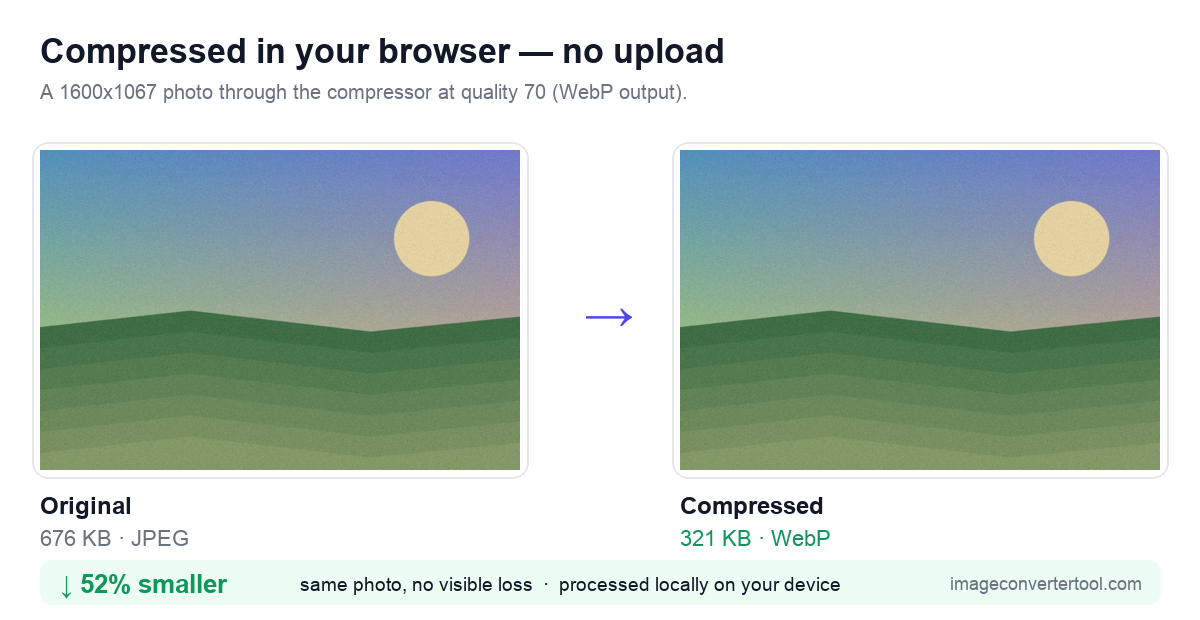
Size the viewing set before attaching it
Make a separate attachment copy, resize it for viewing rather than print when appropriate, and choose a format that suits the content. Send a test or reopen the attached result to verify labels, fine text, and colour without deleting anything from the archive.
- Start by checking whether the image dimensions are much larger than email recipients actually need.
- Use a compatible, practical format for the content type.
- Compress moderately so the image remains readable and trustworthy.
- Send the optimized copy and keep the original separately if needed.
Balance total message weight with intended use
For many email attachments, realistic dimensions plus moderate JPG compression is enough. Use PNG only when text clarity or graphic edges justify it.
Leave room for email encoding and gateway limits
Email attachments are encoded for transport, which adds overhead; Base64 itself expands binary data by roughly one third before message headers and other content are counted. A file that sits just below a provider headline limit can therefore still fail somewhere in the route.
Provider, company, and recipient limits change and may be configured differently. Keep the total comfortably below the smallest known limit, or use a trusted file-sharing link for large originals. Test the final message when delivery is important.
A few proofs, a full album, and print files need different delivery
A product photo shared with a vendor.
A screenshot sent inside a support conversation.
A scanned document image attached to a client email.
Message encoding and recipient limits matter too
The same workflow usually improves any later web reuse because right-sized, lighter images are easier to publish efficiently.
Teams with email-heavy workflows should define simple attachment presets so file-size problems do not repeatedly slow down communication.
Attachment fixes that create a new problem
- Emailing giant originals that recipients do not need.
- Using PNG for ordinary photo attachments without a reason.
- Over-compressing screenshots until labels become hard to read.
- Replacing the archive original with the reduced email copy.
Frequently Asked Questions
Why can an attachment exceed a limit even when the file looks smaller?
Email encoding and the rest of the message add overhead. Leave margin below the provider or company limit.
Should I resize photos before emailing them?
Yes when the recipient only needs screen viewing. Keep the original for printing, editing, or archival use.
Is JPG suitable for email photos?
Yes. It is widely compatible and efficient for photographs. Use PNG when screenshots or fine text need lossless clarity.
Related Tools


Sources and related reading
For Gmail's attachment-size handling, consult Gmail attachment guidance. For a hands-on companion to How to Reduce Image Size for Email Attachments, continue with Image compression guide.