Comparisons
PNG vs WebP for SEO
PNG vs WebP for SEO is really a question about page weight, image clarity, transparency, and where the asset lives in the final layout.

Choose from the pixels, not an SEO label
If the asset is primarily for browser delivery and does not require PNG-specific behavior, WebP is usually the more SEO-friendly choice.
Where PNG still wins and where WebP usually wins
PNG still wins when lossless clarity and dependable transparency matter more than payload size, especially for screenshots, logos, interface graphics, and assets that may be edited again. WebP usually wins when the image is headed to a modern website and reducing transfer weight is a clear priority.
For SEO, WebP often produces the friendlier result because page speed and efficiency matter. But PNG can still be the right choice when readability or graphic quality would suffer in a lossy workflow.
- PNG: best for crisp screenshots, diagrams, logos, and transparent graphics.
- WebP: best for many blog images, product cards, banners, and modern web delivery.
A screenshot test that exposes bad compression
Use a screenshot with tiny labels as the PNG-versus-WebP test. Export a WebP copy, place both files in the same layout, and read the smallest text at normal zoom. If the WebP is lighter and the labels remain crisp, it is the practical winner. If the letters look fuzzy, saving a few kilobytes has made the image less useful.
That is the important SEO lesson for beginners: Google does not reward a file extension in isolation. A smaller image can help the page load, but an unreadable tutorial image frustrates the visitor. Think of format choice as part of page quality, not as a checkbox that says "WebP installed, SEO complete."
Choose lossy or lossless WebP from the image content
A screenshot, logo, and photograph should not share one quality preset. Start with lossless WebP for small text, hard edges, flat colour, or transparency. For a photograph, test a moderate lossy setting and inspect skin, gradients, foliage, and high-contrast edges at the rendered size.
Encoder sliders are not standardized, so a quality value is only a starting point. Keep the PNG source, compare the downloaded WebP in the real page, and reject the conversion when the saving is small or the graphic becomes harder to read.
- Screenshot or diagram: compare PNG with lossless WebP.
- Photographic PNG: resize first, then compare lossy WebP and JPG.
- Transparent logo: inspect fine alpha edges on both light and dark backgrounds.
- Tiny icon: keep the simpler format when the byte saving is operationally irrelevant.
- Editable master: retain the source rather than repeatedly transcoding the delivery file.
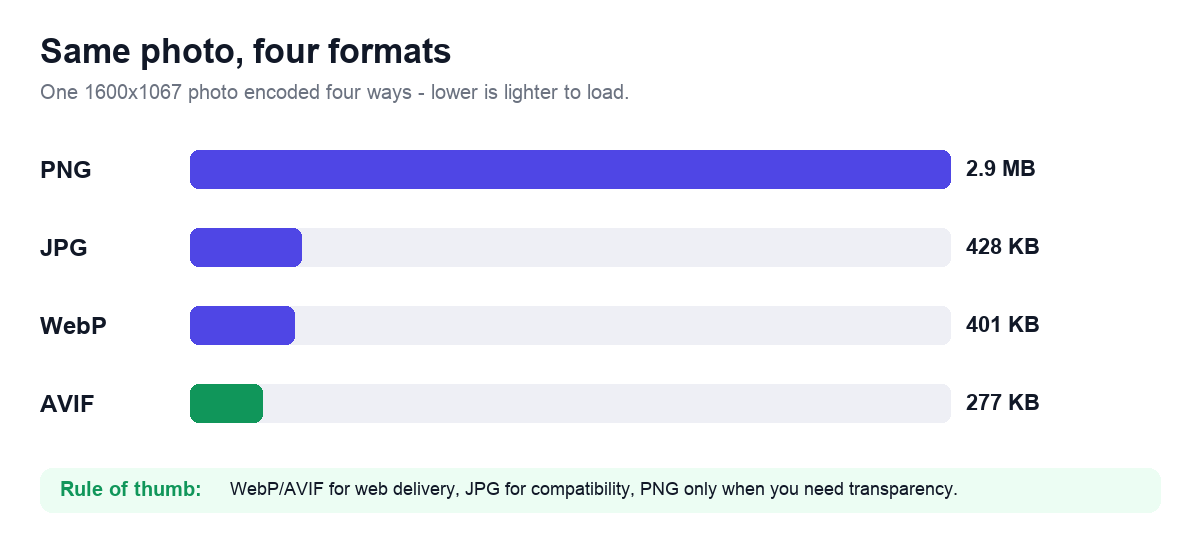
Logos, screenshots, and photos need separate tests
A blog tutorial screenshot with tiny labels may still need PNG.
A homepage banner exported as PNG from design software is often a strong WebP candidate.
A transparent promo badge may work well in WebP if the site stack supports it cleanly.
Connect the format decision to measured page performance
Core Web Vitals are page measurements, not image-format scores. A lighter WebP may help when the image is the LCP element, but server response, discovery priority, caching, layout, scripts, fonts, decode time, and the visitor device also affect the result.
Preserve a higher-bit-depth source when an editing, scientific, medical, or print workflow requires it. For ordinary web delivery, export a separate candidate and check colour, gradients, transparency, and text in the destination. Do not infer a ranking gain from the extension alone.
Where image delivery can influence page experience
The format decision matters because image transfer cost contributes to overall page efficiency, especially on mobile and image-heavy templates.
Developers should define when PNG is the asset source and when WebP is the live delivery format so teams do not publish design masters directly.
PNG-to-WebP changes that can hurt the page
- Converting screenshots to lossy WebP without checking text clarity.
- Keeping every design export in PNG even when it is only used on the web.
- Assuming transparency always requires PNG.
- Ignoring real display dimensions while debating format choice.
Frequently Asked Questions
Does Google rank WebP images higher than PNG images?
Not simply because they are WebP. The advantage is indirect when a suitable WebP reduces page weight without reducing usefulness or clarity.
Can WebP keep a transparent background?
Yes. WebP supports transparency, although you should inspect thin edges and confirm that your publishing workflow preserves the alpha channel.
Why can a PNG screenshot look sharper?
PNG is lossless, so small text and hard interface edges are not blurred by lossy compression. Lossless WebP can also preserve that detail.
Related Tools


Sources and related reading
For Google's published image SEO guidance, consult Google Search image SEO guidance. For a hands-on companion to PNG vs WebP for SEO, continue with Why PNG files become large.