When converting JPG to PNG actually helps
Be clear-eyed about this, because there is a common misconception worth clearing up: converting a JPG to PNG does not recover quality that the JPG already lost. The compression that happened when the JPG was first saved is permanent. What PNG gives you is a lossless container from that point on — useful in specific situations:
- You need transparency. JPG has no alpha channel, so it cannot have a transparent background. If you want to drop an image onto any colour without a white box around it, you need PNG (after removing the background).
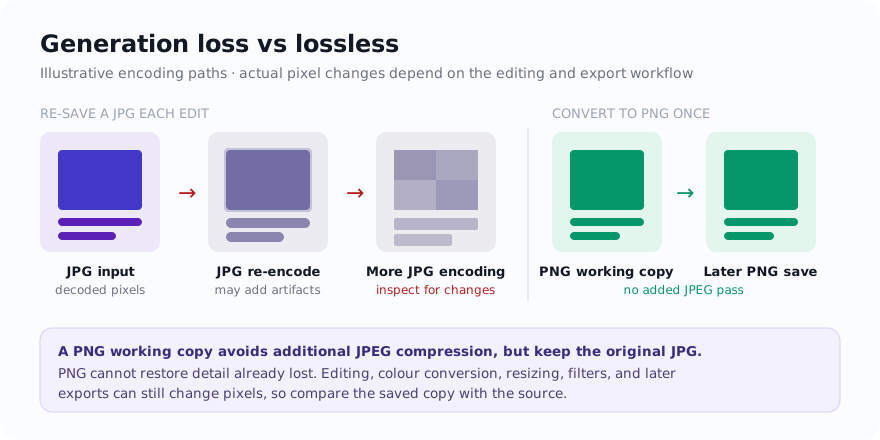
- You are editing in stages. Re-encoding a working copy as JPG can add generation loss. A PNG working copy avoids another lossy JPG encode at each save, although the edits themselves can still change pixels.
- The image is text, line art, or a screenshot. JPG can smear sharp edges and create fuzzy "mosquito noise" around lettering. PNG stores the decoded edge pixels without another lossy pass.
- A tool or platform demands PNG. Some app stores, design tools, and upload forms simply reject JPG.
If none of these apply — for example a normal photo you just want to keep small — staying with JPG is often the practical call, because a PNG copy may be much larger without helping the delivery workflow.
Convert once, then inspect the PNG
- Open JPG to PNG and drop your
.jpgfile in. Where the browser supports the format, the selected file is decoded and converted on the device. - Convert to PNG. PNG encodes the decoded pixels losslessly, so this conversion avoids another JPG compression pass. Later edits, resizing, colour conversion, or an editor's export settings can still change pixels.
- If you need a transparent background, the JPG itself has none to keep. Run the result through the Background Remover first, then keep it as PNG so the transparency survives.
- Download the PNG and check it at full size — sharp text and clean edges are the signs it worked.
A worked screenshot example
Say you have a JPG screenshot of a pricing table. Zoom in and you can see grey halos around the numbers from the earlier JPG compression.
- Convert it to PNG and the file may become much larger because PNG stores the decoded pixels without another lossy pass. The existing halos remain; the PNG only prevents this conversion from adding another round of JPG damage.
- To get genuinely clean text, return to the original capture or re-capture it directly as PNG. Changing the container cannot un-smear pixels already altered by JPG compression.
- If file size matters, compare the PNG with a PNG to WebP export. This site’s converter uses a quality-controlled, lossy WebP path: transparency can remain, but fine edges may change, so inspect the result at full size and keep PNG when exact pixels matter.
The lesson is about workflow, not a promised size: PNG is a dependable lossless working format, while a lossy WebP export may reduce web-delivery weight at the cost of some pixel changes. Choose after comparing the actual outputs.
Stop generation loss before it starts
JPG's quiet problem is that repeated lossy re-encoding can compound damage: edges may soften, colours can shift, and halos can grow. The visible effect depends on the source, edits, quality, and encoder, but keeping a clean source avoids building a workflow on an already degraded copy.
If you know an image is going through several rounds of editing — crop today, annotate tomorrow, add a caption next week — a PNG working copy avoids adding a fresh JPG compression pass at every save. Cropping, resizing, filters, colour management, and other edits can still change pixels, so keep the original and inspect important intermediate exports. Create a JPG or WebP delivery copy only when the destination calls for it.
A quick decision checklist
Run through these before converting, so you do not make a photo needlessly huge:
- Does it need transparency? Yes → PNG. No → consider staying JPG.
- Is it text, a screenshot, or line art? Compare PNG with any WebP delivery copy at full size; this site's WebP export is lossy and can alter fine edges.
- Will I edit and re-save it several times? Yes → PNG now, export later.
- Is it a finished photo I just want small? Keep JPG, or compare WebP; a PNG copy is often larger for photographic content.
Related tools
- JPG to PNG — the converter for this guide.
- Background Remover — make the background transparent before keeping it as PNG.
- PNG to WebP — compare a quality-controlled, lossy WebP delivery copy while keeping the PNG master.
- Compress Image — bring a large PNG back down toward an upload limit.
How the selected JPG is handled
For supported files, the selected image is processed on the device rather than sent to the site server for conversion. The page still makes ordinary requests for site delivery, listed libraries, diagnostics, and consent-controlled services; those requests do not contain the selected image for the conversion.
Use the tool: JPG to PNG — free, with selected-file processing performed on the device for supported inputs.
Related guides
Sources and verification
- MDN: Image file type and format guide — JPEG loss, PNG lossless storage, transparency, and format-selection guidance.
Frequently asked questions
Does converting JPG to PNG improve image quality?
No. The detail a JPG lost when it was first saved is gone for good, and converting cannot bring it back. A PNG working copy avoids another lossy JPG encode on later saves, but edits, resizing, colour handling, and export settings can still change pixels.
Can I get a transparent background by converting JPG to PNG?
Not by converting alone — a JPG has no transparency to keep. Remove the background first with the Background Remover, then save as PNG so the transparent area survives.
Why is my PNG so much larger than the JPG?
PNG encodes the decoded pixel values losslessly, so it does not discard detail during that PNG save. A photographic PNG may be much larger than its JPG source, but the difference depends on dimensions, content, metadata, and encoder. Keep the original and compare actual outputs.