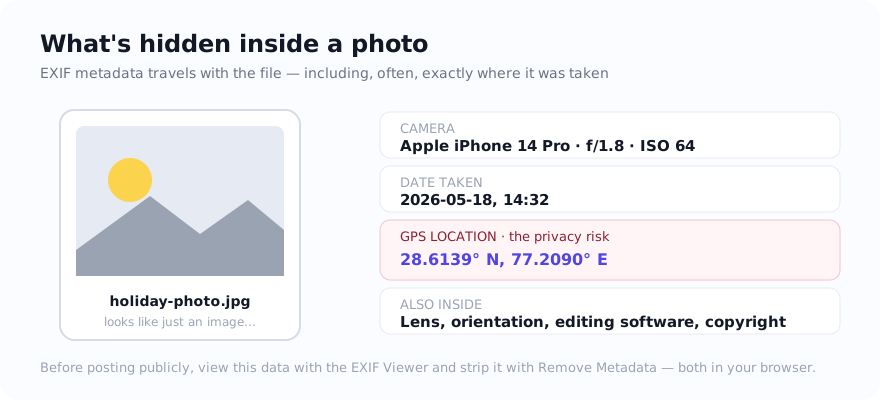
Some phone and camera files contain EXIF metadata, such as device details, capture time, exposure settings, and—when location recording was enabled—GPS coordinates. Other files contain little metadata or none at all, and platforms may remove or rewrite fields. Inspecting the actual file before sharing tells you whether there is metadata worth removing.
What is actually hidden in a photo
EXIF is metadata stored with some image files. Possible fields include the device, timestamp, lens and exposure details, editing software, copyright, and—when location was recorded—latitude and longitude. IPTC or XMP blocks can add captions and rights information. These fields are separate from the visible pixels, but their presence and contents vary by source and processing history.
Step 1: see what is there
Open the EXIF Viewer and select a disposable test photo first. If the file contains readable metadata, the viewer can show fields such as device, date, or coordinates. For supported inputs, the selected file is read on the device rather than sent to the site server for inspection; ordinary page, library, diagnostic, and consent-controlled service requests can still occur.
Step 2: strip it in your browser
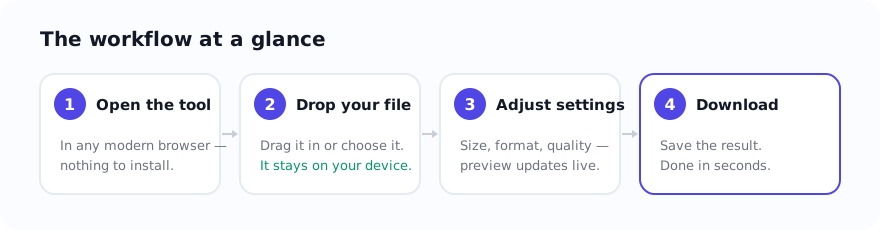
Open Remove Metadata and select the photo. For supported inputs, the tool re-encodes a new copy on the device without the metadata fields it can read. Re-encoding can change file size, colour handling, or visible pixels, so compare the saved copy with the source as well as checking its metadata.
- Drag the photo(s) into the tool.
- It re-encodes each supported file while omitting the metadata fields handled by the workflow.
- Download the stripped copy and compare its visible image with the source.
- Double-check by loading the saved copy in the EXIF Viewer and confirming the fields you intended to remove no longer appear.
When this matters most
- Selling online — marketplace photos taken at home can leak your address through GPS coordinates.
- Posting publicly — forums, dating profiles, and personal blogs where you would rather not reveal a location pattern.
- Sending documents — scanned IDs and forms can carry device and timestamp data you did not mean to include.
- Journalism and safety — anyone who needs to share an image without revealing where it was taken.
Don't rely on platforms to do it for you
Metadata handling varies by platform, upload path, and policy, and it can change over time. A public post, direct message, email attachment, or file share may treat the same source differently. Creating and verifying a stripped copy before sharing reduces reliance on the destination's behaviour, but it does not remove copies already stored in device backups, caches, or other services. For supported inputs here, the selected-file rewrite runs on the device rather than on the site server; ordinary webpage requests still occur.
Good to know
A metadata-removal workflow can re-encode the visible image as it creates the new file, so compare colour, detail, orientation, and dimensions before sharing. If you also need a smaller file, compress the verified copy afterwards. Keep the original separately when capture date, rights fields, or other metadata matters to your records.
Use the tool: Remove Metadata — free, with selected-file processing performed on the device for supported inputs.
Related guides
Sources and verification
- IPTC Photo Metadata Standard — The maintained standard for descriptive, administrative, and rights metadata in photos.
Frequently asked questions
Does removing metadata change how the photo looks?
The workflow creates a re-encoded copy, so visible pixels, colour handling, orientation, or file size can change. Compare the saved image with the source and inspect its metadata before sharing.
Do social networks already remove GPS data?
Some platforms remove or rewrite metadata on some upload paths, but behaviour varies and can change. Inspecting and stripping a copy yourself reduces reliance on that behaviour; verify the saved file before sharing.
Where is my photo processed when metadata is removed?
For supported inputs, the selected file is re-encoded on the device rather than sent to the site server for this operation. Ordinary page, library, diagnostic, and consent-controlled service requests can still occur.