Start with the official notice: there is no universal IBPS, UPSC, or recruitment-portal signature size. File-size bands, dimensions, background instructions, and even how many marks must appear in the image can change between organisations and recruitment cycles. Use the active notice and the upload screen for your application as the authority.
A target such as 20 KB tells you only the file weight. It does not tell you the required width, height, aspect ratio, format, background, or signing instructions. Record every field from the current official specification before editing. If the notice and upload screen disagree, stop and ask the organisation’s official support channel rather than forcing the image to match advice from another exam.
Build a requirements checklist first
Write down the allowed format, minimum and maximum file size, exact pixel dimensions or aspect ratio, ink and background rules, and whether the portal asks for one signature or a special arrangement. Check the active recruitment pages on the IBPS website or UPSC website when either organisation is the destination. A search result, coaching site, or old notice is not a substitute for the current document.
Prepare a clean source
Use a clear photograph or scan with the whole signature visible. Crop away unused paper without clipping the first or last stroke. Correct strong shadows only when the portal allows a plain background, and keep enough contrast that thin strokes remain readable. Work on a copy so the original is available if the portal rejects the result.
Resize to the portal’s dimensions
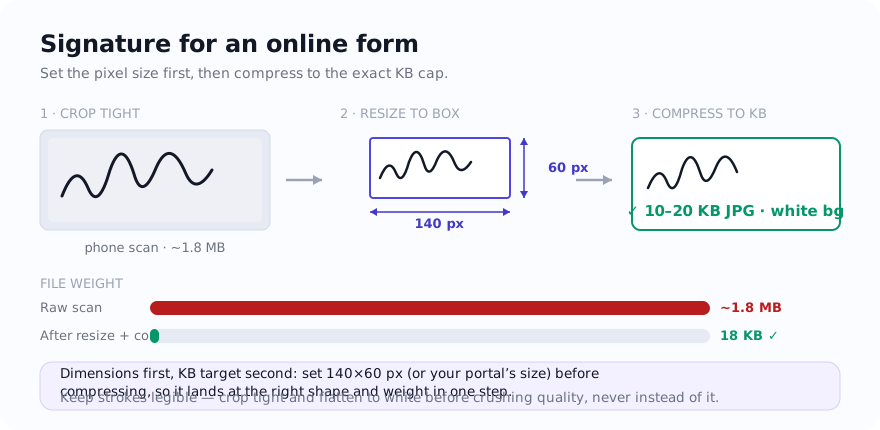
- Crop first. Use Crop Image to remove excess paper while preserving every stroke.
- Enter the stated dimensions. Use the Signature Resizer or Resize Image. Do not substitute an arbitrary 600, 900, or 1200-pixel width when the notice is silent.
- Choose the required format. JPG and PNG encode the same signature differently, so follow the portal rather than assuming one format is accepted.
- Adjust file size last. If the correctly sized file is above the cap, use Compress Image and reduce quality gradually while checking the strokes.
- Validate the saved copy. Confirm its extension, pixel dimensions, file size, orientation, and legibility before uploading.
If the file is below a stated minimum
Do not add noise, enlarge to a guessed width, or assume the portal will ignore its stated minimum. Return to the best available source and follow the portal’s dimensions and format. A cleaner, higher-resolution capture may encode differently, but the upload form itself decides acceptance. If the official instructions contain an apparent conflict, use the organisation’s official help channel.
If the file is above the maximum
Check for unnecessary margins and oversized dimensions before lowering quality. A tight crop and the exact requested dimensions often remove more bytes than repeatedly compressing a large phone photo. If the result is still too large, lower quality in small steps and inspect loops, dots, and thin endings at 100% zoom.
Final submission check
- The saved file matches the current notice’s format, dimensions, and size range.
- No stroke is cropped, faint, or hidden by a shadow.
- The signature orientation and background match the portal preview.
- You tested the actual upload before deleting the original or closing the notice.
Privacy note
A signature is sensitive. For supported inputs, these editing tools perform the selected-file transformation on the device rather than sending the signature to the site server. The page can still make ordinary requests for site delivery, listed libraries, diagnostics, and consent-controlled services. Inspect the downloaded copy and keep it only as long as needed.
Use the tool: Signature Resizer — free, with selected-file processing performed on the device for supported inputs.
Related guides
Sources and verification
- IBPS official website — Use the active recruitment notice and upload screen for the exact current signature rules.
- UPSC official website — Use the notice for the examination you are applying to; requirements can differ by recruitment cycle.
Frequently asked questions
What pixel size should a signature be?
Use the exact dimensions in the current official notice or upload screen. There is no safe universal width, and requirements can differ by organisation and recruitment cycle.
What should I do if the file is below the portal minimum?
Do not enlarge it to an arbitrary width or add noise. Recheck the official dimensions and format, return to a better source if available, and contact the portal’s official support channel if its rules appear inconsistent.
Should the signature be JPG or PNG?
Use the format listed in the current application instructions. JPG and PNG are not interchangeable when an upload validator checks the extension or MIME type.