
Instagram Image Size Guide
Use these common planning sizes to frame square, portrait, story, and reel images, then check the current Instagram composer preview before publishing.
This page is a guide, not a second resizer. Open Social Media Image Resizer and choose an Instagram preset. Use Crop Image first when the composition needs deliberate reframing.
Common Instagram planning sizes
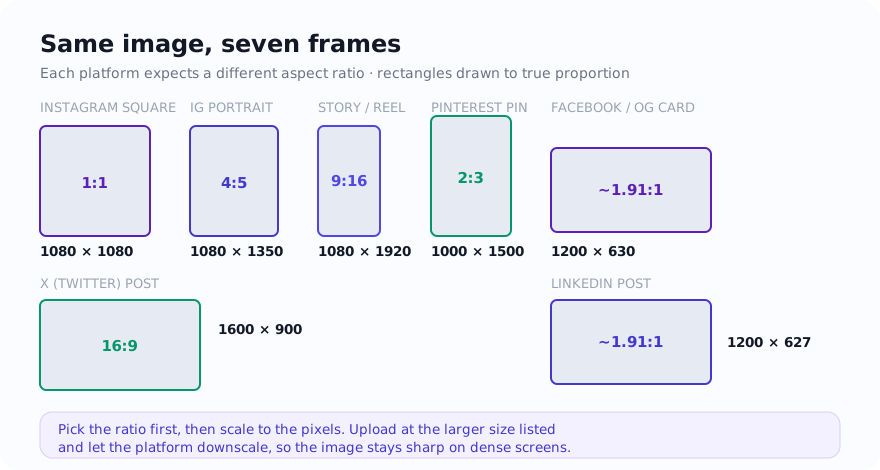
Common working canvases include 1080x1080 for a square post, 1080x1350 for a 4:5 portrait post, and 1080x1920 for a 9:16 story or reel frame. Treat these as preparation sizes, not a promise about the final display: Instagram can change its composer, grid treatment, safe areas, and processing.
Preparing the aspect ratio before upload gives you more control over faces, text, and product edges. The real check is the current in-app or scheduling-tool preview. For supported files, the social resizer performs the selected-file transformation on the device; ordinary page and consent-controlled service requests can still occur.
When a photo does not fit Instagram's frames
Use the linked resizer when a photo, product shot, or designed graphic does not match the frame you intend to use. A wide landscape photo cannot become a full-height 9:16 frame without either cropping part of the scene or adding padding, so choose that trade deliberately.
When a team delivers one high-resolution master, create separate copies for each placement and keep the master unchanged. Test one output in the current composer before processing a large batch.
Feed, story, and batch resizing jobs
These are practical cases where preparing a frame first reduces surprises in the upload preview.
- Create a square copy while keeping faces and labels inside the intended crop.
- Prepare a 4:5 portrait copy when the composition benefits from a taller feed frame; this does not guarantee reach or engagement.
- Create a 9:16 story or reel frame from a horizontal photo by choosing padding or an intentional crop.
- Prepare a consistent set of product images, then inspect the first carousel before exporting the rest.
Protect faces, labels, and captions from uncertain crops
Do not place a face, logo, price, or small text directly against the frame edge. A feed view, profile grid, story interface, or scheduling preview can show a different crop or place controls over the artwork. Keep essential content in a central safe area, then inspect every placement you intend to publish.
For a wide source used in a vertical story, decide whether losing the sides is acceptable. If not, choose fit mode and add deliberate padding rather than allowing an automatic fill crop to cut off the subject. For a carousel, prepare every slide to the same intended ratio and test the first upload before exporting the full set.
- Keep editable masters so a changed crop does not require enlarging an already exported image.
- Inspect small text on a phone-sized preview rather than only on a desktop canvas.
- Check both the placement preview and profile-grid treatment when either matters to the campaign.
JPG or PNG for Instagram uploads
JPG is a broadly compatible starting point for photographs. PNG can preserve sharp edges and text in a working graphic, but it is often much larger and the final service may still transform it. Verify the current uploader's accepted formats rather than relying on an old checklist.
Keep an editable original, export a delivery copy, and inspect small text, gradients, and edges in the actual preview. No source format can guarantee that a third-party service will preserve every pixel.
Instagram planning reference
Use these as common working canvases, then confirm the current composer and safe-area preview before publishing.
| Placement | Dimensions (px) | Aspect Ratio | Best For | Notes |
|---|---|---|---|---|
| Square Post | 1080 x 1080 | 1:1 | Grid consistency, product shots, quotes | Classic format, works well for uniform grid aesthetics |
| Portrait Post | 1080 x 1350 | 4:5 | Taller feed compositions | Offers more vertical composition space; it does not guarantee engagement |
| Landscape Post | 1080 x 566 | 1.91:1 | Panoramic views, wide group shots | Confirm the current composer preview and grid treatment |
| Story / Reel | 1080 x 1920 | 9:16 | Full-screen vertical content, behind-the-scenes | Keep text and important details inside the current safe-area preview |
How To Resize An Image For Instagram
- Choose the Instagram format you need: square (1080x1080), portrait (1080x1350), or story/reel (1080x1920).
- Open Social Media Image Resizer and select the matching Instagram preset.
- Pick fit mode to keep the entire image visible with padding, or fill mode to crop to edge.
- Download the resized image and upload it directly to Instagram or your scheduling tool.
Instagram Sizing Mistakes
Exporting an oversized file without first checking whether the current destination benefits from the extra pixels. Start from the intended frame and compare the preview.
Choosing portrait or landscape because of a blanket engagement claim. Pick the frame that supports the subject and the current placement.
Skipping the profile-grid and feed previews. Grid treatment can change, so keep important elements away from uncertain crop boundaries.
Starting from a small source and expecting resizing to create missing detail. Enlarging can soften the result, so use the best available original.
Sources and verification
- Instagram Help Centre — use the current help and composer preview for organic-post behavior.
- Meta Ads Guide — current placement and creative specifications for advertising workflows.
Platform specifications and interfaces can change. These official resources and the current upload preview take precedence over the planning table on this page.
Frequently Asked Questions
Which Instagram size should I pick for a feed post versus a story?
Common planning canvases are 1080 by 1080 for square, 1080 by 1350 for a 4:5 portrait post, and 1080 by 1920 for a 9:16 story or reel frame. Treat them as working sizes and confirm the current Instagram composer preview before publishing.
Why does Instagram crop or zoom my photo after I upload it?
A source whose aspect ratio differs from the selected placement may need cropping or padding. Prepare the target ratio first, keep important content away from uncertain boundaries, and use the current in-app preview because platform behavior can change.
Does a portrait image get more reach than a square image?
There is no reliable reach guarantee based on image shape alone. A 4:5 portrait frame offers more vertical composition space, while a square can be easier to reuse. Choose the frame that presents the subject clearly and judge the current preview.
Related tools
Resizing for Instagram is usually one step in a larger content workflow. Crop first if framing matters, resize to Instagram dimensions, then compress if the file is larger than needed.
Social Media Image Resizer
Resize images for Instagram, Facebook, Twitter, LinkedIn, and other platforms using built-in presets.
Open Social Media ResizerCrop Image
Manually crop your image to control composition before resizing to Instagram dimensions.
Open Crop ImageCompress Image
Reduce file size after resizing when the export is larger than your upload speed or platform allows.
Open Compress ImageResize Image
Use the general resizer when you need custom dimensions that do not match any Instagram preset.
Open Resize ImagePNG to JPG
Convert PNG screenshots or graphics to JPG before uploading to Instagram for smaller file sizes.
Open PNG to JPGImage Format Converter
Switch between image formats when your source file is not in a format Instagram accepts.
Open Image Format Converter