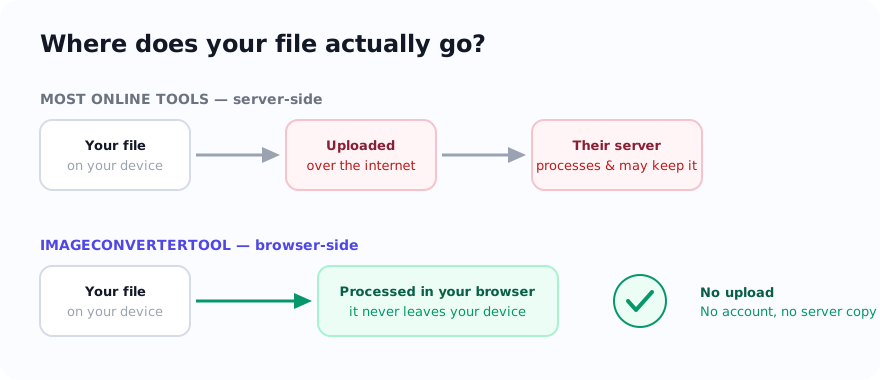
A common and sensible question is: "If I use a free online tool to compress my passport photo, where does that photo actually go?" The honest answer depends on how the tool is built. Two fundamentally different processing designs can sit behind nearly identical "drop your file here" boxes.
This guide does not label competing tools as local or server-based because implementations can change. Instead, it gives you a framework for checking any image tool, including this one, and explains why a selected file can stay local even though the surrounding webpage still makes ordinary network requests.
The two designs
Server-side tools
You pick a file, your browser uploads it to the company's servers, the servers do the work, and the result is sent back. This is how a great many online tools work — including some very good, very popular ones. There's nothing inherently wrong with it; it's just a design with a consequence: a copy of your file leaves your device. What happens to that copy — how long it's kept, who can see it — is governed by that company's policies and security, which you mostly take on trust.
Browser-side (client-side) tools
The transformation happens inside your browser, on your own machine, using built-in web technologies or a processing library loaded into the page. In this design, the selected file does not need to be sent to the site server for the operation. The webpage can still request scripts, fonts, models, diagnostics, analytics, or advertising; a precise privacy statement separates those requests from the file itself. This is the design used for supported ImageConverterTool workflows.
Both designs can produce a useful compressed JPG. The privacy difference is where the selected file is processed, not whether the webpage uses a network connection at all.
Why it actually matters (for some images)
The processing path matters more when the image is something you would not publish openly: identity documents, signatures, financial or medical images, unreleased work, or personal photos carrying location data. Browser-side processing avoids one specific exposure — sending the selected file to a remote processor — but it does not replace device security, browser security, organizational policy, or a careful review of third-party page resources.
How to tell which kind you're using
You do not need to become a security researcher, but no single visual clue proves the processing model. Use several checks together:
1. Treat an offline test as a clue, not proof
Load the page, wait for its documented libraries to finish, disconnect, and try a disposable test file. Continued processing suggests a local workflow, but a failed test may simply mean a library or model was not cached. Passing the test also does not prove that no earlier request contained data.
2. Do not rely on the progress bar
An upload indicator is evidence of a transfer, but a server request can happen without a visible percentage. Local processing can also show progress while a model runs on the device. Interface wording is useful context, not a network audit.
3. Read the disclosure and inspect requests when it matters
Look for specific language about the selected file, exceptions, libraries, analytics, and ads. For sensitive or regulated work, use browser developer tools with a disposable sample to inspect requests during selection and processing, or use an approved offline application when organizational policy requires it.
A quick comparison framework
When you're choosing a tool for a sensitive image, weigh it on these axes:
| What to check | Server-side | Browser-side |
|---|---|---|
| Where is the selected file processed? | On the provider's server | On the device for supported inputs |
| Who controls a processing copy? | The provider, under its policy | No site-server processing copy is created |
| Works offline after page load? | Usually not | Possibly, when required code is already available |
| Good for very large / batch jobs? | Often better (server power) | Limited by your device |
| Collaboration / shareable links? | Possible | No (deliberate trade) |
| Suitable for sensitive images? | Depends on policy and provider trust | Depends on device, browser, and organizational policy |
Neither processing model is automatically private. Browser-side processing can avoid sending the selected file to a remote processor for supported operations, while server-side tools may offer more capacity and collaboration features. The practical privacy outcome still depends on the page resources, device, browser, extensions, provider policy, and the sensitivity of the file.
Where ImageConverterTool sits — honestly
I build everything here browser-side, and I'll tell you the trade-offs rather than pretend there are none:
- The good: supported routine operations process the selected file in your browser without sending it to the site server for transformation, and no account is required. The page still makes ordinary site-delivery and consent-controlled service requests. Browser memory, downloads, caches, extensions, device backups, and destination services remain outside this site's control.
- The limits: very large files lean on your device's memory, and some formats depend on browser support. These workflows do not create a site-server processing copy for supported operations, so the site does not provide a hosted share link. Downloads, browser caches, device backups, extensions, and any service you later upload the result to can still retain copies.
Those limits are the deliberate price of not uploading your file. For the everyday jobs most people need, they rarely come up.
The takeaway: "online image tool" can describe different processing models. For a personal image, look for a specific selected-file disclosure, inspect requests with a disposable test file when necessary, and follow any device or organizational policy that applies. An offline run is only one clue.
Sources and verification
- MDN: Using files from web applications — how browsers expose user-selected files to web code.
- Chrome DevTools: Inspect network activity — a primary guide to reviewing requests made by a page.