When I needed to shrink a photo for an online form a few years ago, I did what most people do: I searched "compress image online," clicked the first result, and dropped my file in. It worked. But a question nagged at me — that was a personal document, and I just handed it to a server I know nothing about. That small discomfort is the reason I ended up building ImageConverterTool, and the reason the routine tools here run in your browser instead of on someone else's computer.
This guide explains what "editing images without uploading" actually means, when it genuinely matters, and how the supported tools keep the selected file out of the site's processing server. It does not mean the page makes no ordinary web requests.
What "without uploading" really means
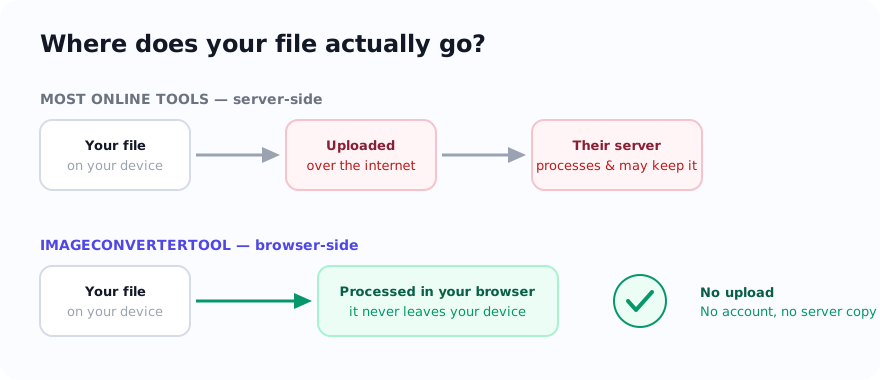
There are two ways an image tool can work:
- Server-side (the common way). You select a file, your browser uploads it to the company's server, the server processes it, and sends the result back. Your original — and often a copy of the result — sits on that server, at least temporarily.
- Browser-side / client-side (the way I build routine tools). Modern browsers can decode, re-encode, resize, and read pixels using built-in APIs. For supported inputs, the transformation happens on your machine and the selected file is not sent to the site server for processing.
An offline run can demonstrate that the transformation is capable of working locally, but it is not a complete privacy audit. While online, a page can still request site assets, listed processing libraries, diagnostics, and consent-controlled analytics or advertising without including the selected file.
When it actually matters (and when it doesn't)
I'll be honest — not every image is sensitive. If you're compressing a meme, it genuinely does not matter where it's processed. It matters when the image contains something you wouldn't post publicly:
- ID and official documents — passport scans, ID cards, bank statements, anything for a government or job portal.
- Signatures — you're often asked to resize a signature to an exact KB for an application. That's your actual legal signature.
- Medical or financial images — prescriptions, reports, statements.
- Unreleased work — client artwork, product shots under embargo, screenshots of an app that isn't public yet.
- Photos with location data — a photo whose hidden EXIF includes the exact GPS coordinates where it was taken.
For all of these, sending the selected file to a processing server is a real consideration. A browser-side workflow removes that processing upload for supported inputs, although ordinary site and third-party requests still need to be disclosed separately.
How to do the common jobs without uploading
The selected-file transformation for the supported workflows below runs locally in your browser. Pick the task you need and keep the original until you have inspected the download.
Compress an image (hit a size or KB limit)
Use the Compress Image tool. Lower the quality a little, and if it's still too big, set a max width — resizing down is the most effective way to hit a target. For strict limits there are exact-KB pages like compress to 50KB and compress to 100KB.
Convert between formats
PNG to JPG for lighter photos, PNG to WebP or JPG to WebP for smaller modern web files, HEIC to JPG for iPhone photos that won't open on Windows, and SVG to PNG to rasterise a vector. All decode and re-encode on your device.
Resize or crop
Resize Image to set exact pixel dimensions, or Crop Image to fix the composition. For form photos there are presets like the Passport Photo Maker and Signature Resizer.
Remove hidden data before sharing
This is the one people forget. Photos carry EXIF metadata — camera model, the date, and often GPS coordinates. Before you post a photo publicly, see what's in it with the EXIF Viewer and strip it with Remove Metadata. Both read and rewrite the file locally.
Turn a PDF or document into images
PDF to JPG renders pages in your browser, and Compress PDF shrinks scanned PDFs locally — useful when a contract scan is too big to email but you'd rather not upload it somewhere first.
The honest trade-offs
Browser-side processing isn't magic, and I'd rather tell you the limits than oversell it:
- Very large files use your device's memory. A 200-page scanned PDF is heavy because your browser does the work; on an old phone, big jobs can be slow.
- Some formats depend on your browser. AVIF and HEIC support varies; the tools tell you when your browser can't decode something.
- It is not collaborative or cloud-synced. The routine tools do not store the selected image as a hosted project, so there is no result link to share. That is the deliberate trade for local processing.
For the everyday jobs most people need — compress for a form, convert a screenshot, resize a photo, clean metadata — those limits rarely come up, and the privacy benefit is real.
How to investigate a tool yourself
Two quick checks can provide clues, but neither proves the full network behavior:
- Try the transformation offline after the page loads. If it completes, that demonstrates local processing capability. It does not show what requests the page makes while online.
- Inspect browser developer tools. The Network panel can show requests made while you select and process a test image. Use a non-sensitive test file, because reading network logs correctly takes care.
I designed the routine workflows so supported selected files are processed on the device. Some advanced formats load a documented library or model, so test the specific tool and browser you intend to use.
The short version: for a personal image, prefer a workflow that does not send the selected file to a processing server. That is how I built the supported routine tools here. Ordinary page requests still occur, and the privacy and cookie pages explain those separately.
Sources and verification
- MDN: Using files from web applications — browser APIs for reading user-selected files.
- MDN: HTMLCanvasElement.toBlob() — how a browser can encode a canvas as an image file.