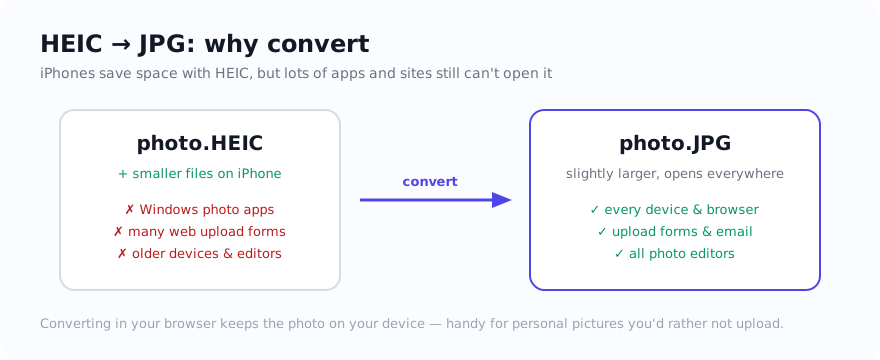
If you have ever emailed an iPhone photo and the other person could not open it, you have met HEIC. Apple uses it because it can store photos efficiently. The trade-off is compatibility: some Windows setups, upload forms, older devices, and editing software still do not accept HEIC. A JPG copy is useful when the destination lists JPG but not HEIC.
What HEIC is and why it trips people up
HEIC (High Efficiency Image Container) commonly stores HEVC-encoded image data. It is efficient, but support varies by operating system, browser, application, and upload service. JPG has much broader support, so it is a practical delivery copy when a destination rejects the original.
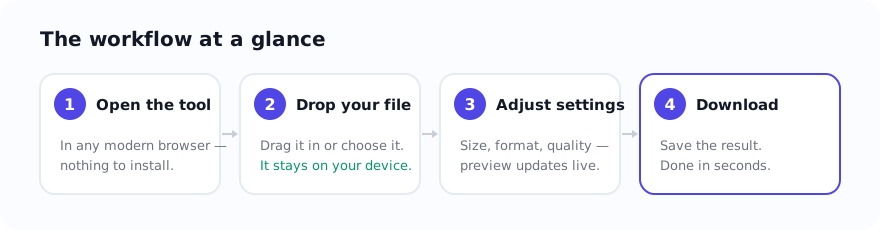
Step by step: convert in your browser
Open HEIC to JPG. The conversion runs on your device — the photo is not uploaded.
- Open the tool in a current browser. HEIC decoding support can vary, so the page reports a clear error when the file cannot be decoded.
- Drop in your HEIC files. Drag one or many
.HEICfiles onto the page, or choose them. - Let it decode. Each photo is decoded and re-saved as JPG locally — no upload, no waiting on a server.
- Download the JPGs. Save them and test one in the destination app or form before converting a large batch.
On Windows
A conversion copy can avoid changing the Windows codec setup. Open the tool, try one file, and download a JPG that standard Windows apps commonly handle.
On Mac
Preview can export HEIC files, while the browser tool offers a single workflow for several selected photos. Try a representative file first, because decode support still depends on the browser and source.
JPG or PNG — which should you pick?
For photos, JPG is usually the more compatible delivery format. Choose HEIC to PNG when a PNG workflow is specifically required, accepting that the output may be much larger. If the JPG must fit a size limit, run it through the compressor and inspect the result.
A note on quality and file size
A JPG copy may be larger than the HEIC source, and re-encoding can change fine detail, metadata, or colour handling. Inspect the downloaded file at full size. If file size matters, use moderate compression rather than assuming one setting is visually lossless for every photo.
Why "without uploading" matters here
The photos people convert are often personal, and the source can contain location or camera metadata. For supported files, this tool decodes and re-saves the selected image on the device rather than sending it to the site server for conversion. Ordinary page requests still occur. To inspect or remove metadata, use EXIF Viewer and Remove Metadata, then verify the downloaded copy.
Use the tool: HEIC to JPG — free, with selected-file processing performed on the device for supported inputs.
Related guides
Sources and verification
- Apple Support: Using HEIF or HEVC media — Apple’s current overview of HEIF support, sharing, and conversion.
Frequently asked questions
Do I need to install anything to create a JPG copy on Windows?
Not for this workflow. Try a representative HEIC file in a current browser, download the JPG, and confirm it opens in the destination app before processing a batch.
Will converting HEIC to JPG lose quality?
JPG is lossy, so re-encoding can change fine detail. The practical impact depends on the source and quality setting; inspect the downloaded result instead of relying on a universal promise.
Is my photo uploaded when I convert it?
For supported files, the selected image is decoded and converted on your device rather than sent to the site server. The page can still make ordinary requests for delivery, listed libraries, diagnostics, and consent-controlled services.