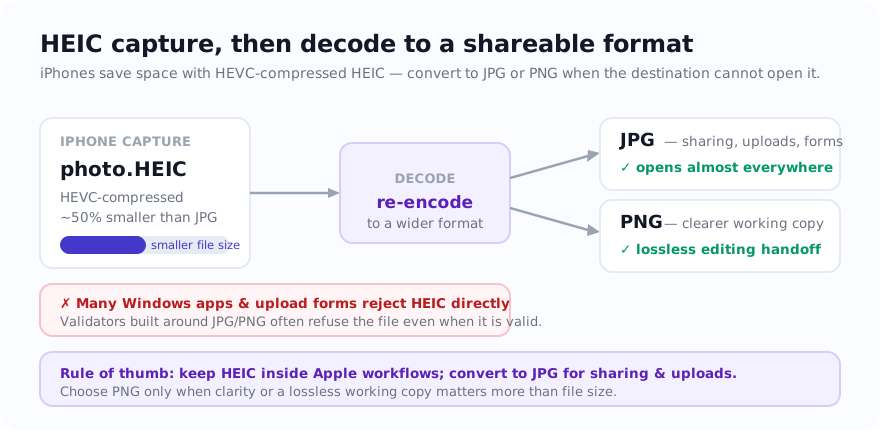
Quick answer: keep HEIC when the destination supports it, create a JPG copy when the receiving workflow explicitly accepts JPG, and use PNG as a lossless working copy only when the added file weight is acceptable.
What HEIC is
HEIC is a modern image format commonly used by Apple devices for photos and is designed for storage-efficient image sequences. Its practical byte size and visible result depend on the source and encoder, and destination support still needs to be checked.
People usually notice HEIC only when a site, app, or colleague asks for something else.
Why HEIC causes workflow friction
Many platforms were built around JPG and PNG long before HEIC became common. As a result, upload validation, preview systems, CMS forms, government portals, and office tools often assume older formats. Even when a device can open HEIC, the workflow around it may still fail.
That is why HEIC conversion is less about fixing the image and more about fitting the destination.
When to convert HEIC to JPG
Convert to JPG when the image is a normal photo and the receiving email, website, form, or shared workflow lists JPG but not HEIC. A common format is not an acceptance guarantee: check the current instructions and test the converted copy.
When another person will receive the file, ask which formats their software accepts or send a tested JPG copy while retaining the HEIC original.
When to convert HEIC to PNG
Convert to PNG when image clarity matters more than file weight, or when the output is moving into a design workflow. PNG can be a better working format for screenshots, edited graphics, or cases where you want a cleaner handoff before further editing.
For ordinary camera photos, PNG is usually larger than necessary, so use it deliberately rather than by default.
Common situations
| Situation | Recommended output | Reason |
|---|---|---|
| Website upload or form submission | JPG | Use when the current upload specification lists JPG |
| Emailing a photo to someone | JPG | Recipient is more likely to open it without issues |
| Further editing in a graphics workflow | PNG | Clearer working copy when file size is less important |
| Turning phone photos into one document | JPG first, then PDF | Smoother multi-step workflow for document uploads |
A simple conversion workflow
- Ask what destination will receive the file.
- Choose JPG for compatibility or PNG for editing clarity.
- Resize if the source dimensions are far larger than necessary.
- Turn the final images into PDF only if the receiving system expects a document instead of loose image files.
Tools for opening and converting HEIC
Use HEIC to JPG when the goal is easy sharing, uploads, or forms. Use HEIC to PNG when you want a cleaner working file. If the next step is a document upload, follow with Image to PDF.
Related guides
Sources and verification
- Apple Support: Using HEIF or HEVC media — Apple’s maintained explanation of compatibility, sharing, and conversion.
FAQ
Why do some websites reject HEIC files?
Many upload systems and older applications were built around JPG and PNG, so they simply do not expect HEIC even if the image itself is valid.
Should I convert HEIC to JPG or PNG?
Use JPG for most photo-sharing and compatibility needs. Use PNG when image clarity, transparency workflows, or lossless editing is more important than file size.
Does converting HEIC always make quality worse?
HEIC-to-JPG is a lossy re-encode, while a PNG copy can still differ because of decoding and colour handling. Inspect the converted file; the acceptable result depends on the source and destination.