Quick answer: make a PDF when the images represent pages, proof sets, forms, or receipts that need to travel as one document. Keep separate image files when the recipient still needs to edit, crop, or reuse each image independently.
Why PDF is useful here
PDF gives you one file instead of many. That matters when you are uploading scanned pages, expense receipts, assignment pages, ID proofs, claim documents, or photo-based reports. A PDF is easier to submit, easier to attach, and easier for the receiving system to keep in order.
It also reduces the mess of renaming and sorting multiple separate image files.
When separate images are still better
Keep images separate when the receiver needs to edit them, drag them into design software, crop them individually, or use them on websites and marketplaces. A PDF is a container, not a better image format.
If each image has its own destination, merging them into a document may just add friction.
Common workflows that benefit from PDF
| Use case | Why PDF helps |
|---|---|
| Assignments or applications | One file is easier to upload and review than multiple photos |
| Expense or receipt bundles | Keeps related pages together in order |
| Scanned document photos | Feels more like a document than a camera roll |
| Proof sets or portfolio pages | Presents multiple images in a single shareable file |
Prepare the images first
PDF quality starts before the PDF step. If the source images are oversized, rotated incorrectly, or stuck in a format the workflow rejects, fix that first. Resize when necessary, convert HEIC if compatibility is an issue, and then combine the final images.
This helps keep the PDF cleaner and prevents avoidable file bloat.
What to expect with page settings
Page size, orientation, and margins matter because the result behaves like a document. A4 or Letter makes sense for most formal uploads. Original-size pages can work when preserving the source dimensions matters more than standard printing conventions.
Transparent images usually end up flattened onto a page background, so think in terms of document pages rather than web graphics.
A simple workflow
- Convert unsupported source formats first if needed.
- Rotate or resize oversized images before building the PDF.
- Choose a page size that matches the destination workflow.
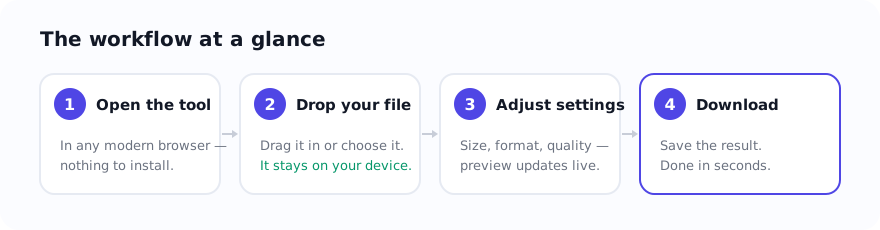
- Combine the images in the correct order and export once.
Tools for building and checking the PDF
Use Image to PDF when you need one document. If your source files are from an iPhone and a portal rejects them, convert them first with HEIC to JPG. If the images are unnecessarily large, reduce them with Resize Image before making the PDF.
Related guides
Sources and verification
- PDF Association: ISO 32000 PDF resources — an industry reference for the PDF specification and ecosystem.
FAQ
When is PDF better than sending separate image files?
PDF is better when the receiver expects one document, when the images represent ordered pages, or when you want a cleaner submission for forms, receipts, assignments, and scans.
Should I resize or convert images before making the PDF?
Usually yes. Preparing the images first can reduce document size and improve consistency, especially if the source files are HEIC or much larger than necessary.
Can transparent images stay transparent inside a PDF?
In many image-to-PDF workflows transparent areas end up flattened onto a page background, so it is better to expect a final document-style page rather than web-style transparency.