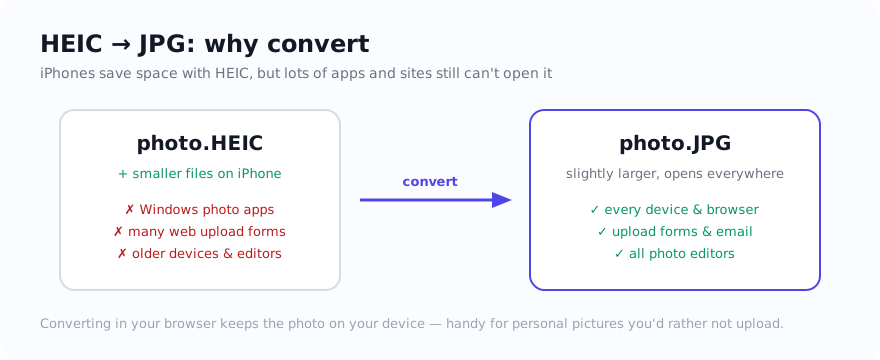
You copy photos from an iPhone to a Windows PC, double-click one, and Windows cannot decode it. HEIC support depends on the Windows version, installed components, and application. You can add the relevant Microsoft Store extensions for direct viewing, or create a JPG delivery copy for software and forms that do not accept HEIC.
Why Windows struggles with HEIC
HEIC commonly relies on HEVC decoding components that are not available in every Windows setup or application. Microsoft Store availability and pricing can change, and adding support to Photos does not make every upload form accept HEIC. A JPG copy is useful when the destination explicitly accepts JPG.
The no-install method (recommended)
Open HEIC to JPG in a current browser, try one .HEIC file, and download the JPG. This does not require a desktop editor, although HEIC decode support can still vary by browser and source file.
- Open the converter in Chrome, Edge, or Firefox.
- Drag in one or many HEIC files.
- Download the JPGs and test one in the app or upload form you plan to use.

If you would rather just view them
You can check Microsoft's current HEIF and HEVC options in the Store if you want Windows Photos to display HEIC directly. That changes local viewing support; it does not change the accepted formats of another site or app. Create a JPG copy only when the destination needs one, and keep the HEIC original.
JPG, PNG, or smaller?
Choose JPG for normal photos. Choose HEIC to PNG if you specifically need a lossless copy. If a JPG needs to fit a size limit afterwards, run it through the compressor.
Which method should you choose?
Both approaches have a place — pick based on what you actually need to do with the photos:
- Just want to look at them on this PC? Installing the HEIF/HEVC extensions lets Windows Photos display HEIC directly. It is the least work if viewing is all you need.
- Need to use a service that lists JPG but not HEIC? Create a JPG copy and test it in that destination.
- Moving a whole camera roll? Keep the HEIC originals and create delivery copies only where compatibility requires them.
There is no universal winner: install viewing support if you want to preserve the original workflow, and convert when a specific destination rejects HEIC.
Keep your photos private
These are often personal photos. For supported files, the selected image is decoded and re-saved on the PC rather than sent to the site server for conversion. The page still makes ordinary requests for delivery, listed libraries, diagnostics, and consent-controlled services; an offline run is evidence of local capability, not a complete network audit.
Use the tool: HEIC to JPG — free, with selected-file processing performed on the device for supported inputs.
Related guides
Sources and verification
- Microsoft Support: Can’t view this file type in Photos — Microsoft’s HEIF and HEVC troubleshooting and extension guidance for Windows Photos.
- Apple Support: Using HEIF or HEVC media — Apple’s explanation of HEIF compatibility and conversion.
Frequently asked questions
Why will Windows not open my HEIC photos?
HEIC support depends on the Windows version, installed decoding components, and the app. A JPG delivery copy helps when the destination supports JPG but not HEIC.
Do I have to buy an extension?
Check the current Microsoft Store listing for your Windows setup; availability and pricing can change. This browser workflow creates a JPG copy without requiring a desktop editor where HEIC decoding is supported.
Can I convert many HEIC files at once?
Yes. Drop multiple HEIC files into the converter and download them all as JPG; it runs locally in your browser.