When you want PDF pages as JPG (and when you do not)
Exporting pages to JPG makes sense when:
- A form only accepts images. Plenty of upload fields take JPG or PNG but not PDF — a scanned certificate or form page needs to become an image.
- You want one page in a slide or document. Dropping a JPG of a single page into a presentation is far easier than embedding a whole PDF.
- You are sharing a quick preview. An image of the cover page previews instantly in chat, where a PDF needs to be opened.
It is the wrong move when the page is mostly text that must stay selectable or searchable — a JPG is a flat picture, so the text inside it can no longer be copied or read by a screen reader. If you need that, keep the PDF. And if your real goal is the opposite direction — combining images into a PDF — see the images to PDF guide instead.
Resolution is everything
A PDF page can contain vector shapes and live text, raster scans, or a mixture of all three. A JPG is a fixed grid of pixels. When the tool rasterises a page, the selected detail level affects how much pixel detail is captured; it cannot restore detail missing from a low-resolution scan.
- Too low (a small pixel size) and text edges turn fuzzy and hard to read.
- Higher than the task needs can add pixels and bytes without improving the way the page is actually used.
- A practical check: start with Standard, inspect small text and seals at 100%, and move to High only when the extra detail is useful. The tool may lower the effective scale for unusually large pages to stay within its safety cap.
Start with Standard, inspect the result at 100%, and increase detail only when small lettering, lines, signatures, or seals need it.
Export readable PDF pages as JPG
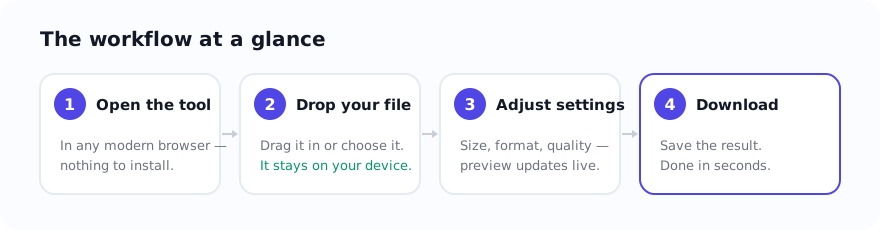
- Open PDF to JPG and drop your
.pdffile in. Where the required PDF library is supported, the selected document is rendered on the device. - Choose JPG and a detail level. Standard is a reasonable first check; use High when small text needs more detail, then inspect the rendered result at full size.
- Convert the document. The tool renders every page; there is no pre-conversion page selector.
- Save what you need. Use the Save button on an individual rendered page, or download the ZIP when you want all rendered pages.
- Compress if needed. If a page image is over an upload limit, run it through Compress Image and set the required target size.
A worked certificate example
You have a multi-page PDF and a portal that wants the certificate page as a JPG below its current file-size limit.
- Render the document at Standard detail first, then inspect the certificate page's smallest text, signature, and seal at 100%.
- If those details are soft and the source PDF itself is sharp, render again at High. If the source is a blurry scan, a higher setting only creates more pixels from the same limited detail.
- Use the certificate page's individual Save button. If that JPG still exceeds the portal cap, compress a copy and compare readability again before upload.
The useful rule is to preserve enough detail for the receiving task, then reduce bytes carefully. Keep the PDF and the first readable export so you can retry without repeatedly recompressing a damaged copy.
Related tools
- PDF to JPG — the converter for this guide.
- Compress Image — shrink a page image to fit an upload limit.
- Image to PDF — the reverse, when you need to combine images back into a PDF.
How the selected PDF is handled
Where the required browser and PDF-library path is supported, the selected PDF is rendered on the device rather than sent to the site server for conversion. Ordinary page, library, diagnostic, and consent-controlled service requests can still occur.
Use the tool: PDF to JPG — free, with selected-file processing performed on the device for supported inputs.
Related guides
Sources and verification
- Mozilla PDF.js — The browser PDF rendering project used by many web-based PDF workflows.
Frequently asked questions
How do I save just one page of a PDF as JPG?
The tool renders every page rather than offering a page selector before conversion. After rendering, use the Save button on the individual page you need; use the ZIP only when you want the complete rendered set.
Why is my PDF-to-JPG text blurry?
You exported at too low a resolution. A JPG is a fixed grid of pixels, so capture the page at a higher pixel size for sharp text, then compress afterwards if the file is too large.
Can I still select or search the text after converting to JPG?
No. A JPG is a flat image, so the text inside it is no longer selectable, copyable, or searchable. Keep the PDF if you need the text to stay live.